Integration with OneBox
Integration of “Virtual mobile PBX” and OneBox systems provides such opportunities:
Client’s card automatic display in the OneBox interface when incoming or outgoing telephone call is being made;
Binding of the “Virtual Mobile PBX” phone number to the OneBox account by filling in the “Make a call” field in the OneBox profile;
Automatic call initiation when client’s phone number is pressed in the OneBox interface (Click2Dial);
History and sound-recordings of all phone calls in the OneBox interface.
Note
This service is only available for the phone numbers which are signed on “Converged” + “API FMC” service packages. The list of Kyivstar telephone numbers with the “API FMC” package can be seen in the “Extended Services” section of your “Virtual Mobile PBX” web portal at the address https://fmc.kyivstar.ua/provisioning.
Note
Phone call recording service is only provided for numbers for which the Call recording feature has been purchased. Call history and sound-recordings are displayed in the “My events” section of the OneBox CRM system.
Configuring Integration
In order to enable integration, you have to select the type of CRM in the “Virtual Mobile PBX” settings and exchange system authorization keys (tokens) so that they can communicate securely with each other:
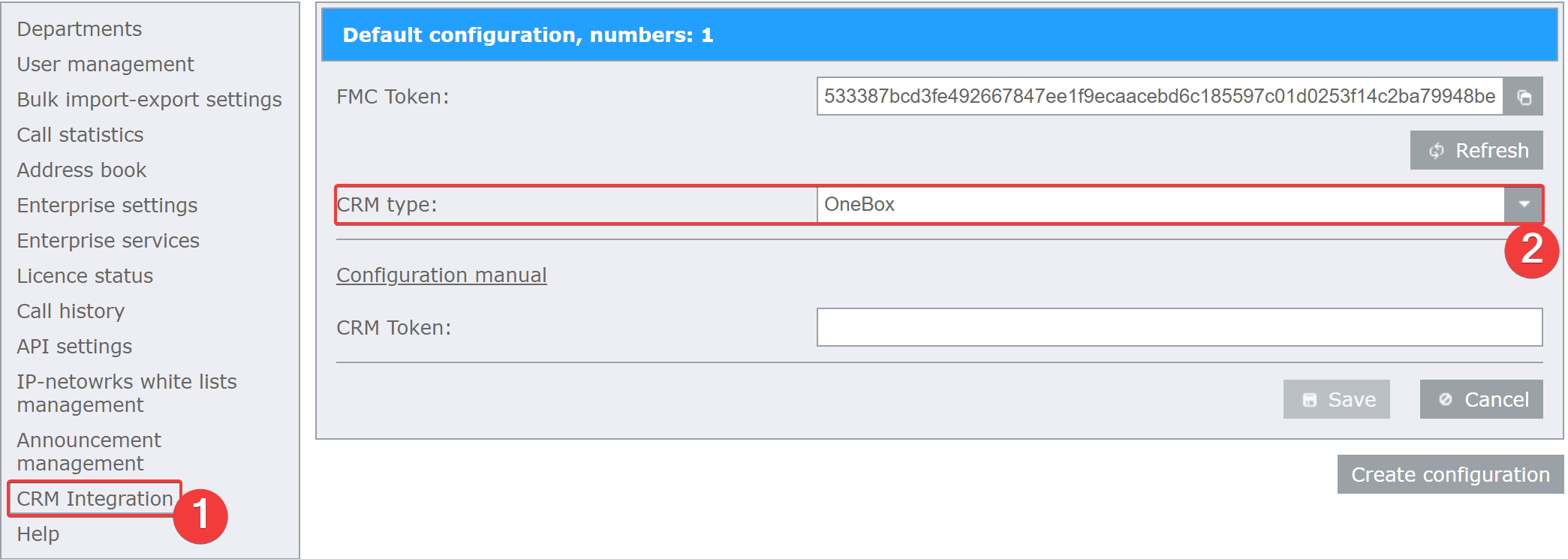
Open integration web-portal of your “Virtual Mobile PBX” at the address https://fmc.kyivstar.ua/crm-integration (use “Virtual Mobile PBX” enterprise administrator’s login and password) and go to the “CRM Integration” section;
Select “OneBox” in the “CRM Type” drop-down menu;
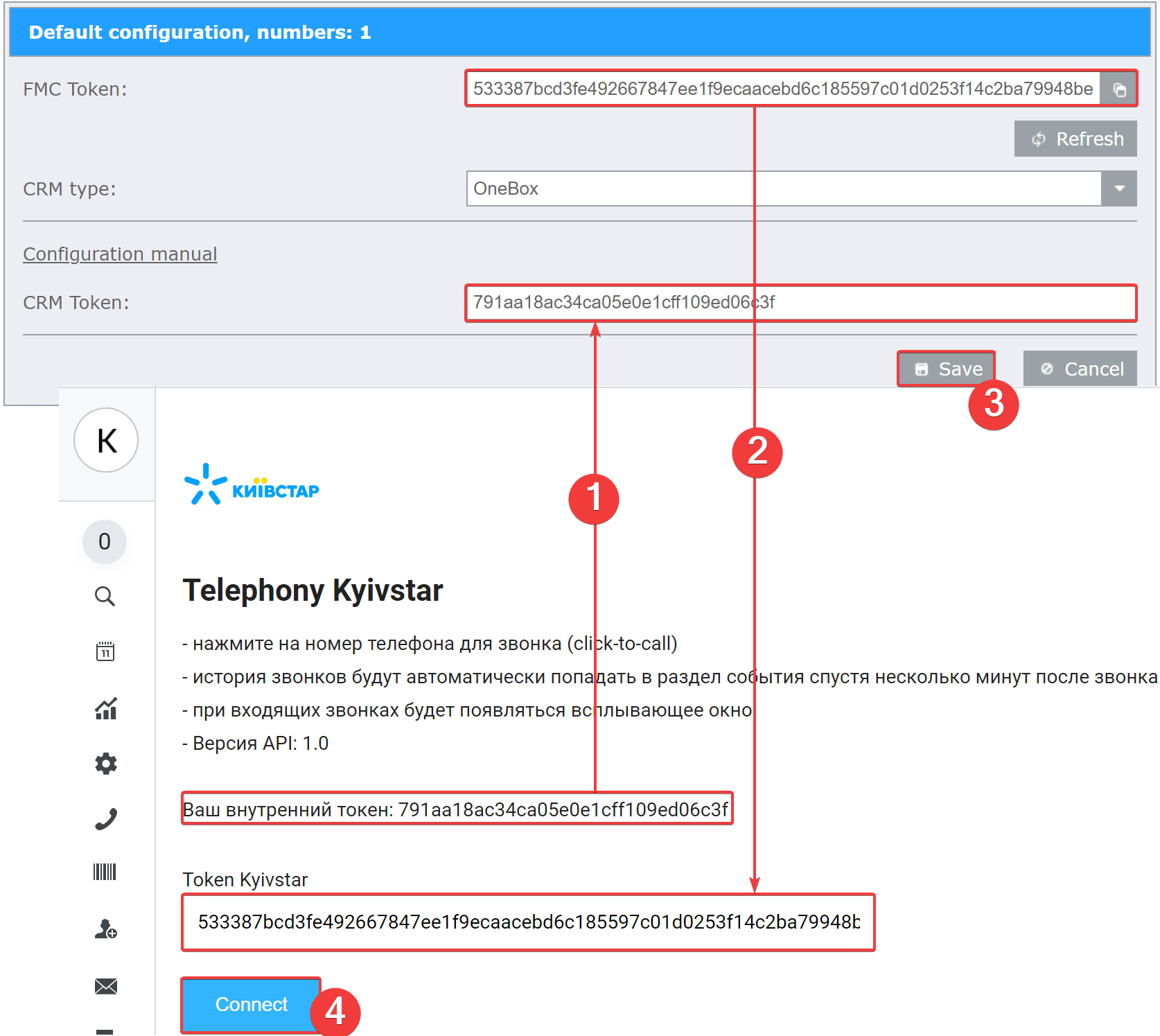
On the page of your OneBox CRM system open the “OneBox market” section from the “System settings” menu of OneBox, use keyword “Киевстар” to find Kyivstar service-provider and press the “Connect” button;

Exchange systems with tokens:
Copy “Your internal token” from OneBox settings to the “CRM Token” field of “Virtual Mobile PBX” settings;
Copy “FMC Token” from the “Virtual Mobile PBX” settings to the “Kyivstar Token” filed of OneBox settings;
Save settings on both systems;
Create a request to OneBox tech-support, where you have to specify your «FMC Token» from settings of “Virtual Mobile PBX” for it to be added to server settings.
The final step is to adjust correspondence between phone numbers of “Virtual Mobile PBX” and OneBox users. For this purpose, each OneBox user must be assigned the corresponding phone number (mobile or fixed) of the “Virtual Mobile PBX” in the “Make a call” field. How to do this is described in the OneBox user settings section.
Note
You can configure integration of different phone numbers of “Virtual Mobile PBX” with different CRM systems using the Settings configurations tool.
OneBox user settings
In order to use functions of automatic client’s card display and call initiation from the OneBox interface, each employee of the company needs to be assigned a phone number of the “Virtual Mobile PBX”:
Go to the “Employees” section in OneBox’s “Contacts” menu;
Open profile of the required employee, click on the “Make a call” field, select “Kyivtstar” in the drop-down list and add the “Mobile Virtual PBX” telephone number in the national format “380xxyyyyyyy” (for example, 380673215467 or 380985642965).
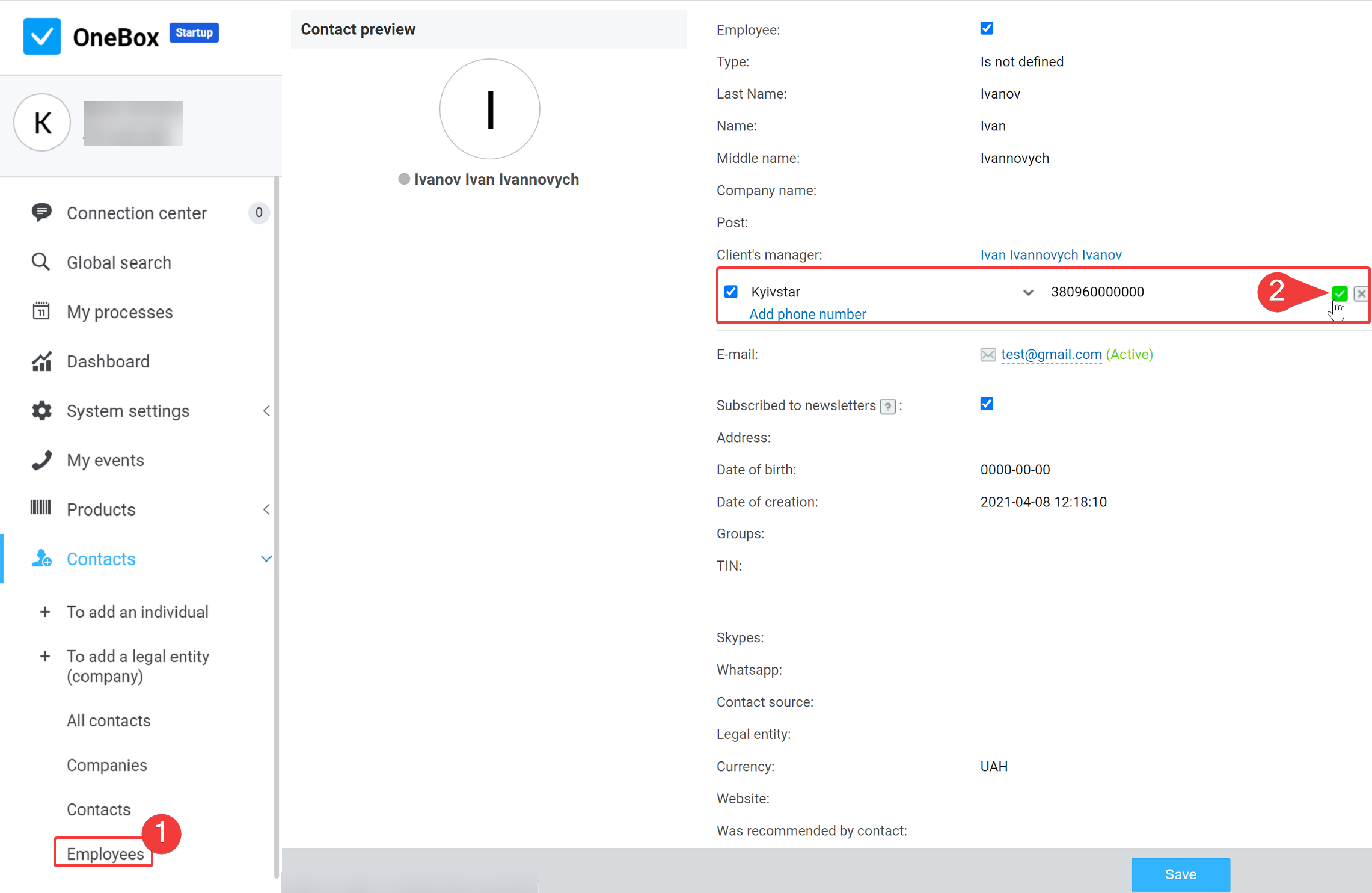
Save changes made to the employee profile.
If your company uses another format of telephone number then use OneBox’s Automatic number formating function.
By this the integration of “Virtual Mobile PBX” and OneBox systems is completed.
Synchronization of call history and recordings of “Virtual Mobile PBX” and OneBox CRM system occurs with a certain frequency. The synchronization frequency can be adjusted using the OneBox CRM Automation tool, the settings are described in the Configuring auto-operation section .
Automatic number formating
“Virtual Mobile PBX” normalizes telephone numbers to national format “380xxyyyyyyy” when working with external systems (for example, 380673215467 or 380985642965).
After integration of “Virtual Mobile PBX” and OneBox employees’ and clients’ telephone numbers will be transmitted in the national format.
If your company uses another telephone number format (for example, 0xxyyyyyyy), then use the OneBox’s “Auto-formating of phone numbers” function.
Go to the section “Other” of OneBox’s “System settings” menu and use search by keyword “auto-formating”;
Enter necessary formats to the fields:
To the “From format” field enter “380xxxxxxxxx”;
To the “To format” field enter “0xxxxxxxxx”.
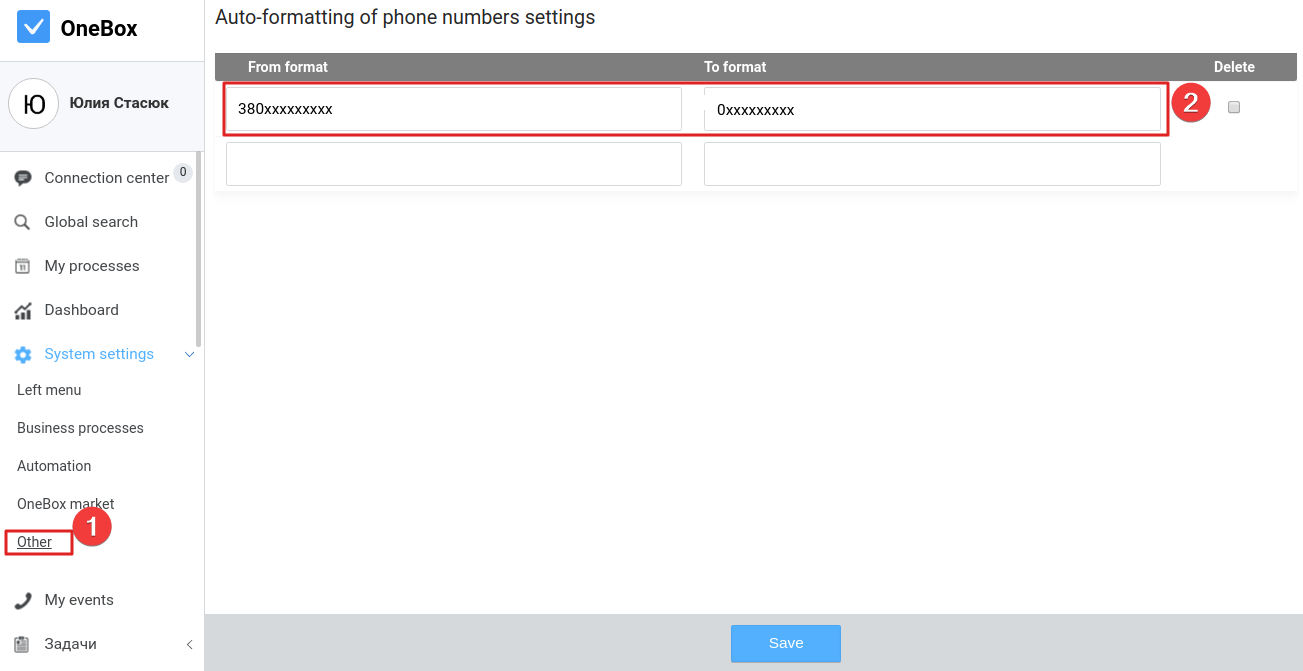
Save changes.
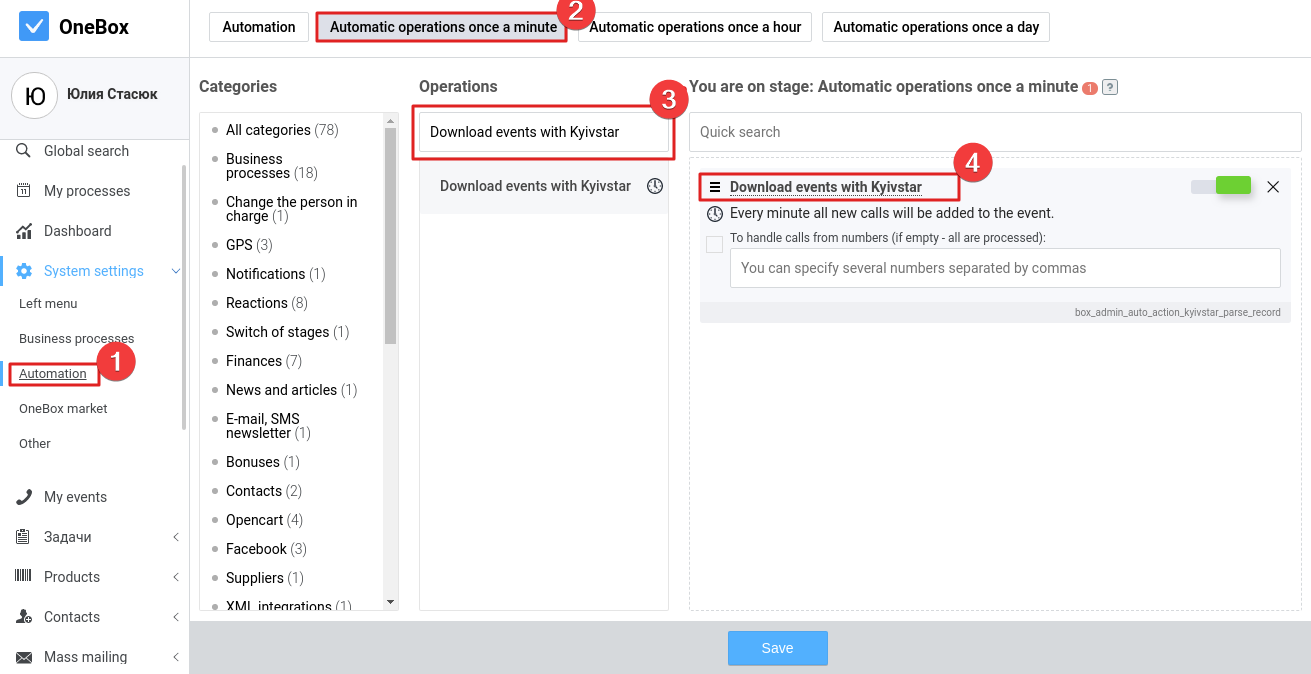
Configuring auto-operation
You have to configure an auto-operation to import call history from the “Virtual Mobile PBX” to OneBox. In order to do so, go to “System settings” - “Automation” - “Automatic operations once a minute”. Using the “Quick search” field find the “Download events with Kyivstar” operation, drag it from general list and drop into right panel. Operation will be enabled after pressing the “Save” button.