
Settings configurations
Configurations allow you to apply different settings(such as setting up integrations with different CRM systems or managing announcements when recording calls) for different enterprise phone numbers of your “Virtual Mobile PBX”.
Default configuration
After connecting services to the phone numbers of your “Virtual Mobile PBX”, these phone numbers enter the “Default Configuration” of the respective services.
Additional configurations
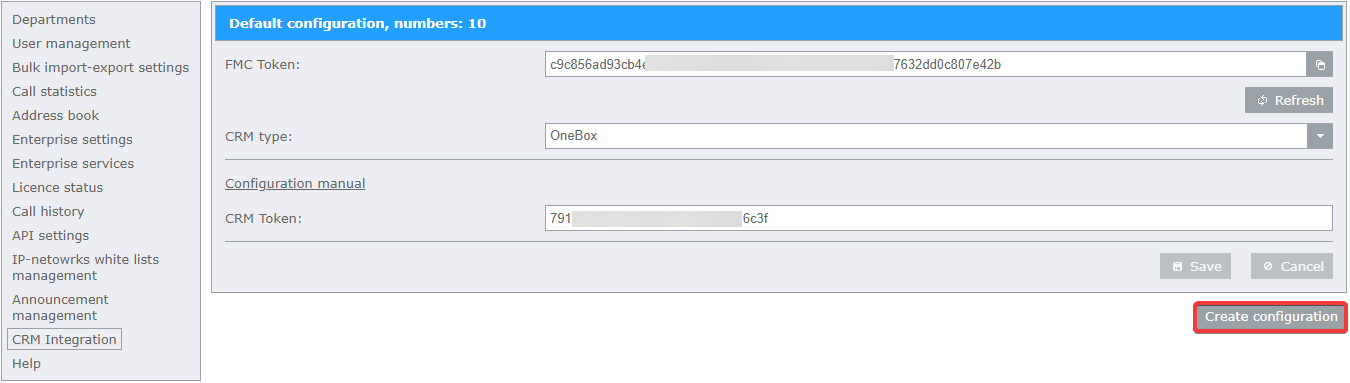
The Configurations Tool allows you to create additional configurations to which numbers from the “default configuration” can be transferred. After the number is transferred to an additional configuration, the settings of this configuration will be applied to this number. To create an additional configuration, on the page of the required function of your “Virtual Mobile PBX”, click “Create Configuration”.
Transfering phone numbers between configurations
Transfering a phone number to an additional configuration
- To transfer a phone number to an additional configuration:
Click on the “Configuration Management” button in the additional configuration section;
In the dialog box that opens, select one or more phone numbers from the “Default configuration numbers” block;
Click the “transfer to the additional configuration” button. The phone numbers you selected should appear in “Current configuration numbers” block;
Save changes by clicking “Save”.

Transfering a phone number to the default configuration
- To transfer a phone number to the default configuration:
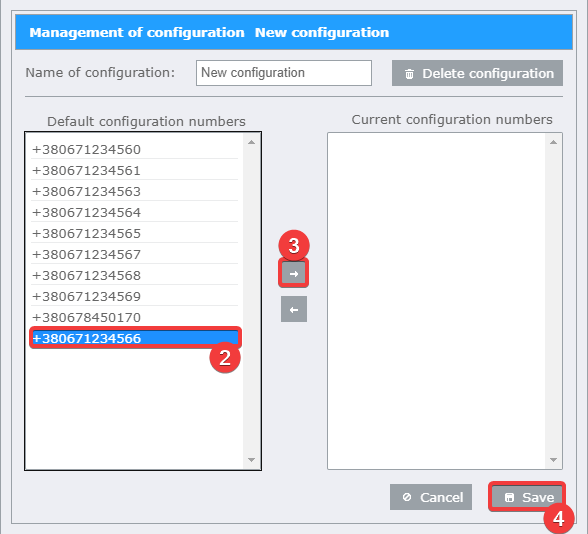
Click on the “Configuration Management” button in the additional configuration section;
In the dialog box that opens, select one or more phone numbers from the “Current configuration numbers” block;
Click the “transfer to the default configuration” button. The phone numbers you selected should appear in the “Default configuration numbers” block;
Save changes by clicking “Save”.

Note
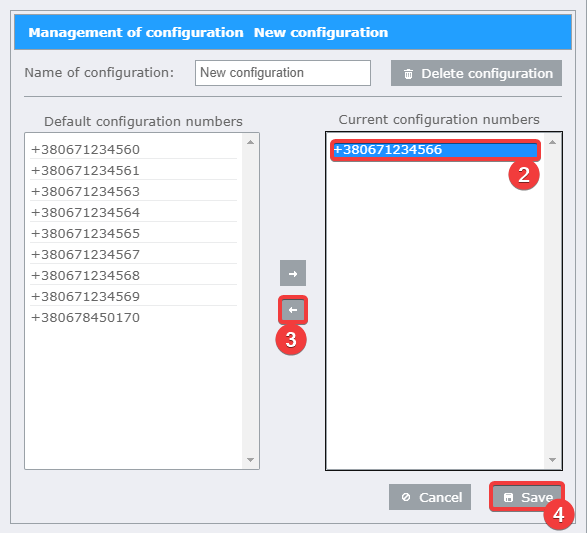
In order to transfer a phone number from one additional configuration to another, this phone number must first be transferred to the default configuration and only after that can it be used again in other configurations.
Management of configuration
Rename a configuration
- To change the name of an additional configuration:
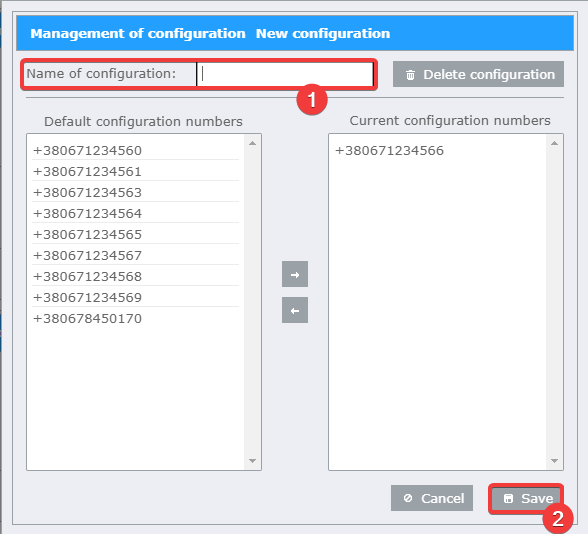
Click on the “Configuration Management” button in the additional configuration section;
In the “Management of configuration” dialog box, enter the desired name in the “Name of configuration” field;
Save changes by clicking “Save”.
Delete a configuration
- To remove an additional configuration:
Click on the “Configuration Management” button in the additional configuration section;
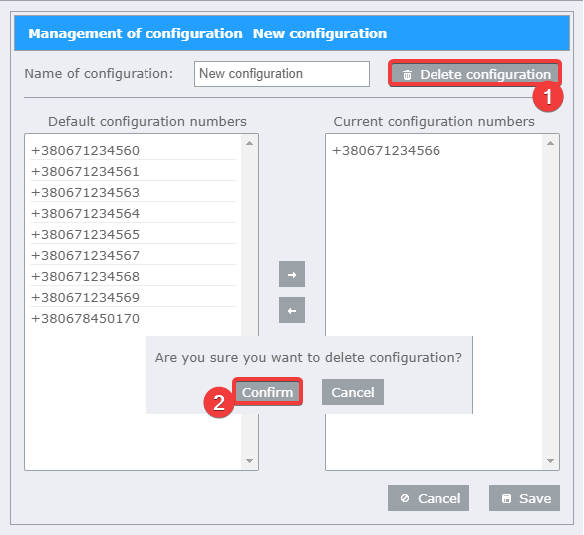
In the “Management of configuration” dialog box, click the “Delete configuration” button;
Click “Confirm” in the pop-up window.
Note
After deleting a configuration, all numbers that have been added to that configuration will be transferred to the default configuration.